Push is the whole point of this thing. You set your window once and your phone taps you on the shoulder a few minutes before each train leaves your station, screen off, browser closed, nothing left running. No app store, no account, no tab you have to remember to keep open.
The only awkward part is switching it on, because it looks different on every phone. iPhone hides the important step behind a menu that Apple moved in iOS 26. Android asks you a second question that is very easy to tap past without reading. So I walked the whole thing on iOS 26 and on Android 16 and grabbed a screenshot of every single tap. Here is the lot.
On iPhone or iPad
Apple only delivers web push to sites that are sitting on your Home Screen. That is an Apple rule for every website, not something I chose. It is the reason iPhone takes a few more taps than Android does. The good news is you only ever do it once.
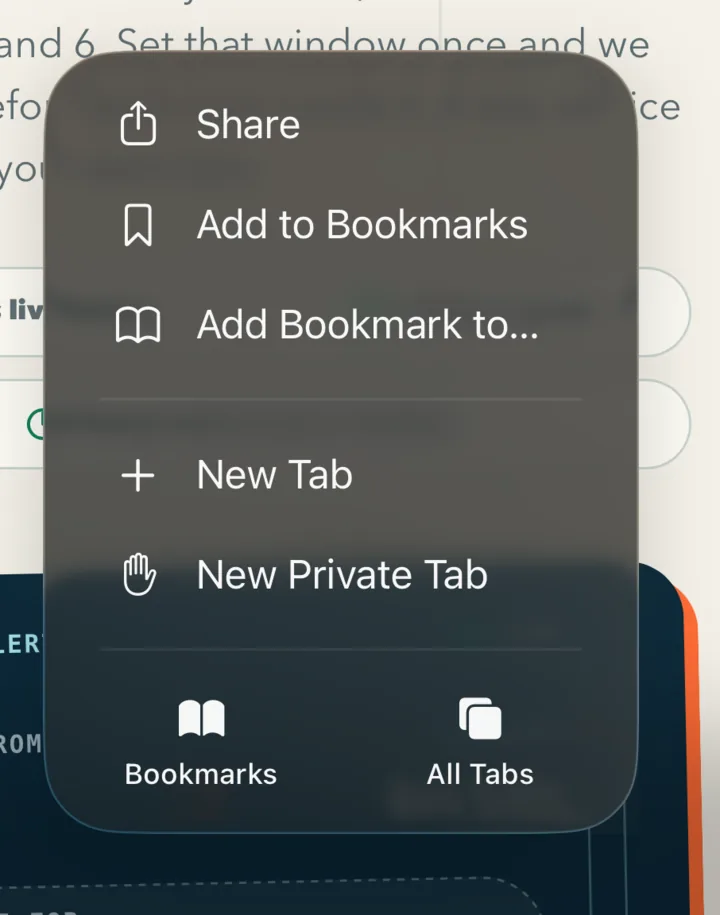
1. Tap the three dots in Safari, then Share
Open sydneytrainalerts.com in Safari and look at the bottom right. Tap the three dots and a menu comes up with Share at the top.
This is the step that catches people out. Safari used to put a Share button straight in the toolbar and nearly every guide on the internet still tells you to tap it there. In iOS 26 it moved inside this menu. If you have gone hunting for a button that isn't there any more, that is why! On iPad and on older iPhones the toolbar button still exists and does exactly the same job.
2. Scroll down and choose Add to Home Screen
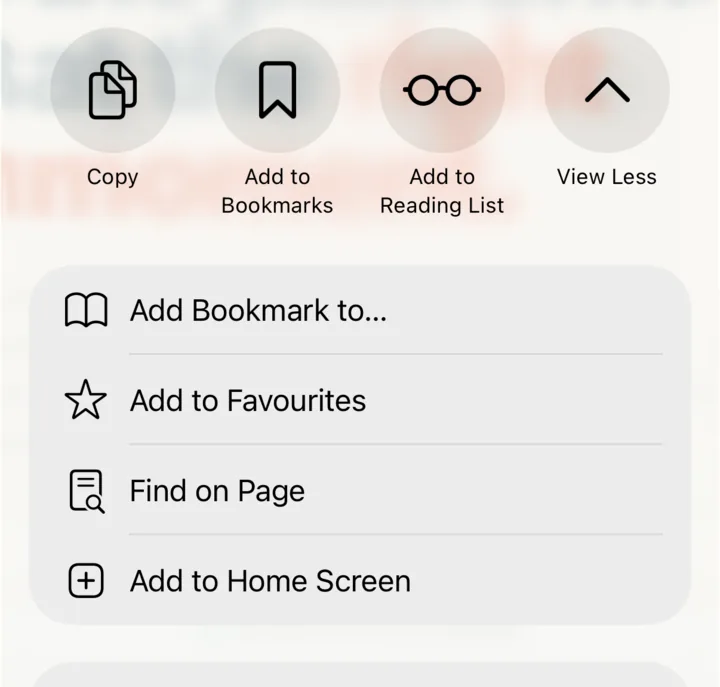
It is not in the first row of icons. Scroll the share sheet down or tap View More and you will find Add to Home Screen in the list underneath with a plus next to it.
3. Tap Add
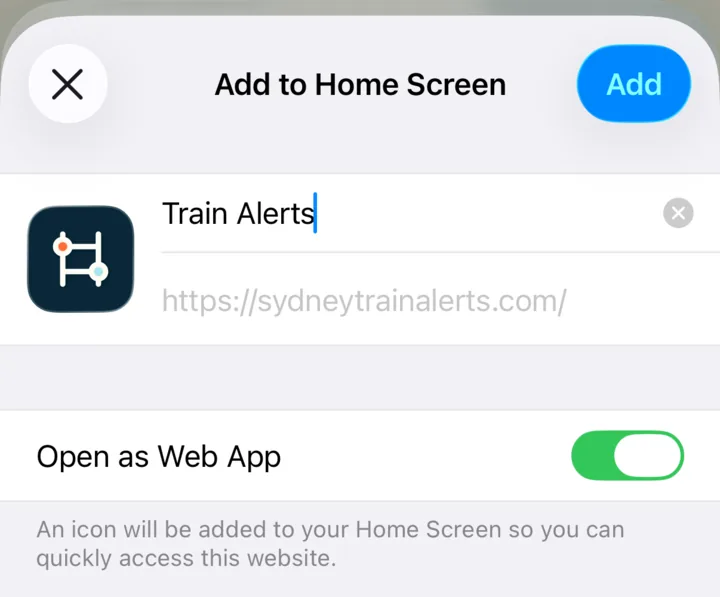
The name and the address are already filled in for you and Open as Web App is already switched on, which is the setting that actually matters. You do not need to change anything. Tap Add in the top right.
4. Open it from the Home Screen icon
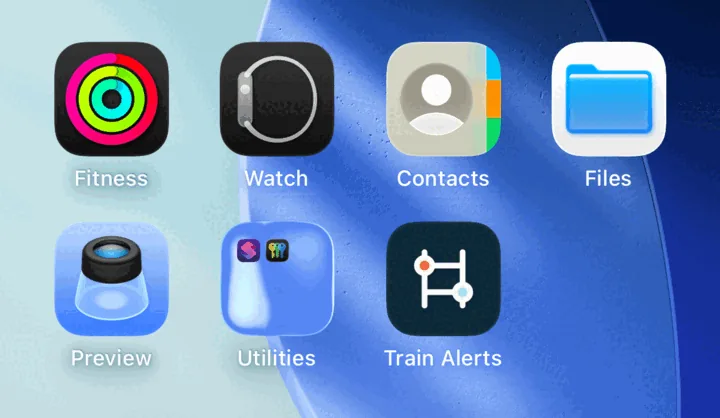
Here is the other one that trips people up. There is now an icon on your Home Screen. Push only works from that icon, so open it from there rather than going back to your old Safari tab. If you set the alert up in the Safari tab instead, the phone has no way to deliver it and you will be left wondering why nothing ever arrives.
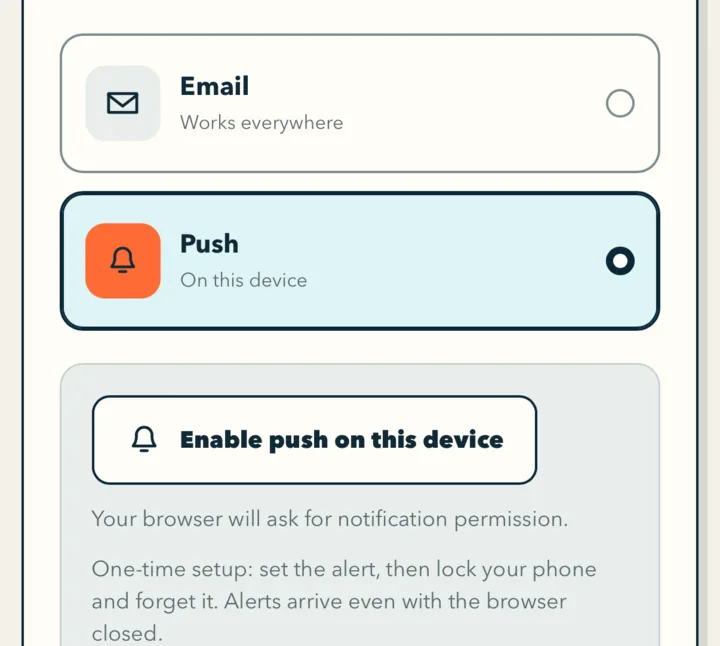
5. Scroll to Delivery and tap Enable push on this device
Build your alert as normal, then scroll down to step 04, Delivery. Push is already selected. Tap Enable push on this device.
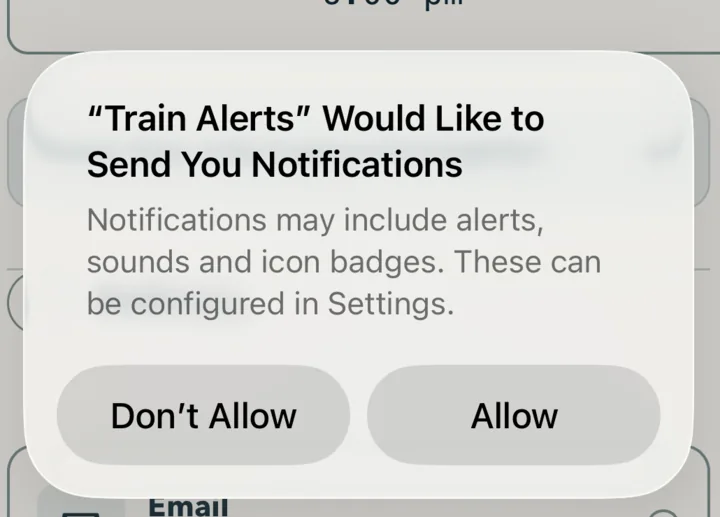
6. Tap Allow
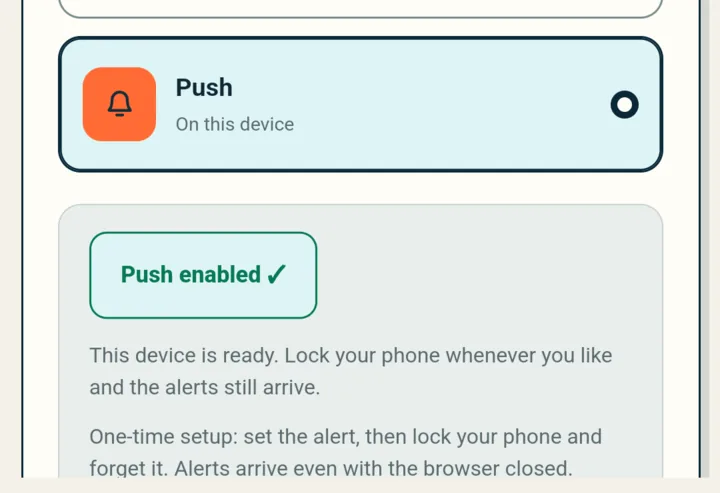
Your phone asks whether Train Alerts can send you notifications. Tap Allow and you are done. The button turns into “Push enabled” with a tick and you can finish setting up your alert.
On Android
Android is the easy one. Chrome has done web push for years and there is no Home Screen step at all, so you can do this straight from the normal site in your browser.
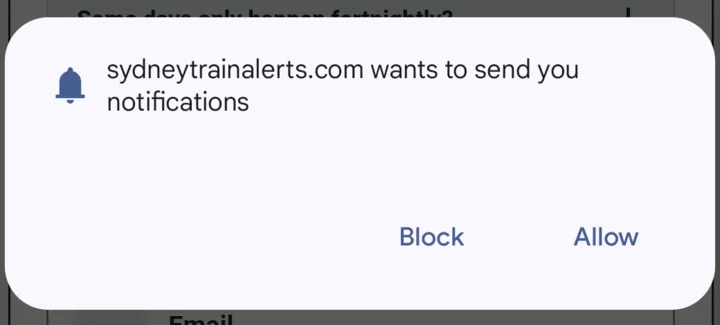
1. Tap Enable push, then Allow
Open sydneytrainalerts.com in Chrome, scroll down to Delivery, leave Push selected and tap Enable push on this device. Chrome asks whether the site can send you notifications. Tap Allow.
2. If Android asks a second time, allow that one too
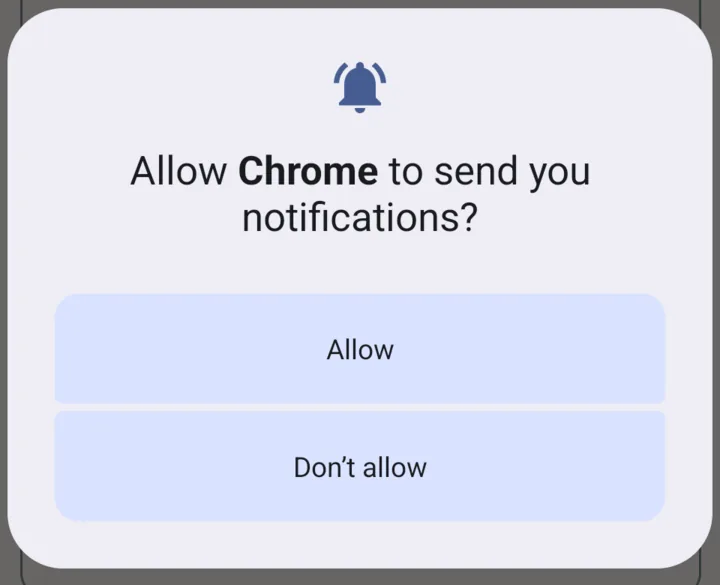
On Android 13 and newer there is a second prompt. This one is about Chrome rather than about my site. You will only see it if you have never let Chrome show you a notification before.
Please do not skip this one! If you allow the site but not Chrome, the first permission counts for nothing, because Android will not let Chrome put anything on your screen at all. Everything looks like it worked and then no alert ever turns up. This is far and away the most common reason someone tells me push is broken on Android.
3. Check for the tick
The button turns into Push enabled with a tick and the hint underneath tells you the device is ready. Lock your phone whenever you like from here. The alerts still arrive.
Nothing arriving? Work through these
- On iPhone, did you open the Home Screen icon? Setting the alert up in a Safari tab instead of the installed icon is the number one cause. Open the icon and set it up again in there.
- On Android, check Chrome's own notification permission. Settings, then Apps, then Chrome, then Notifications. If that is off, nothing gets through no matter what the site says.
- Check your Focus or Do Not Disturb. A work Focus that only allows a handful of apps will quietly hold your alerts back until you unlock.
- Remember the alert only fires inside your window. If you set weekdays 4:45pm to 6:00pm, nothing will happen on a Sunday morning and nothing is broken.
- Still nothing? Choose email instead. It works on every device with no setup beyond clicking the confirmation link. That link expires after 24 hours so click it while you are thinking about it.
Which device actually gets the alert?
The one where you tapped Enable push on this device and only that one. Push is tied to that specific browser on that specific phone, which is why the button says what it says. So set it up on the phone you actually carry, not on the laptop you leave at your desk.
If you want a second screen covered as well, create a second alert over there or pick email, which lands everywhere you read your mail. And if you ever get a new phone, you will need to do this once more on the new one, because the old subscription belongs to the old device.
A couple of things worth knowing
Every alert carries an I'm on board button. Tap it as you step on and the rest of that day's alerts go quiet, then everything resumes on your next travel day. It is the difference between a useful nudge and a phone that keeps buzzing at you once you are already sitting down.
Each alert also lists the couple of services behind yours, so a missed train comes with its own fallback already on the screen. If you are still working out what notice time to put in, I went through that properly in how to work out when to leave work to catch your train. And if you landed here still weighing up whether any of this beats the official channels, the full rundown of Sydney train delay notifications covers what each one does and does not tell you.
Do yourself one favour while you are in there. Turn push on standing at your kitchen bench rather than on the platform, because the Home Screen step is a two minute job at home and a genuinely annoying one when you can see your train pulling in.
Enjoy the quieter commute! With any luck the next time your train slips, you hear about it while the kettle is still going.